How to Get Started With Your RSL Music Exam E-book — A Step-by-Step Guide

If you have just heard about RSL Music Exam e-books and are not sure where to begin, this guide is for you. Whether you are a student, a parent, or a teacher, getting started is simpler than you might think.
Here is everything you need to know, step by step.
Step 1: Purchase Your E-book
RSL Music Exam e-books are available from our Singapore e-shop at shop.rs-event.sg.
When purchasing, make sure you select the correct book for your instrument and grade. If you are not sure which book you need, you are welcome to contact us at RSL London @ Funan and we will help you find the right one.
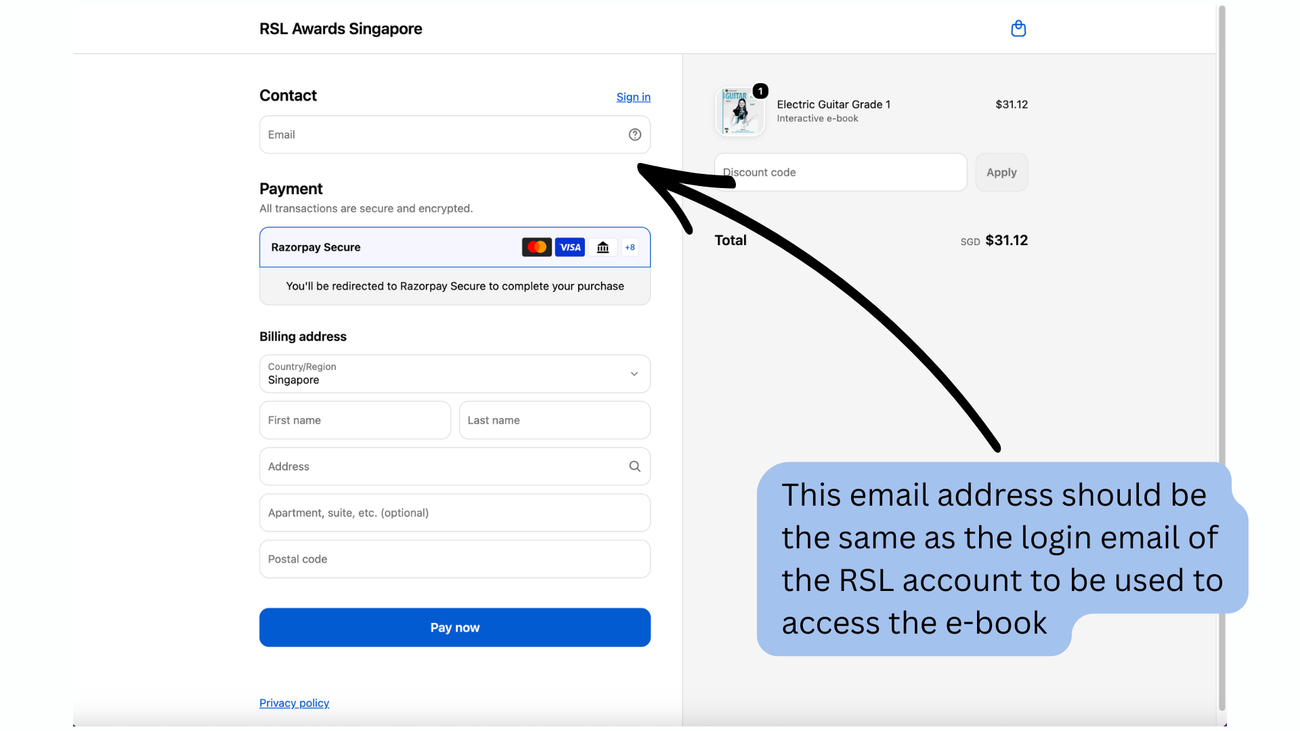
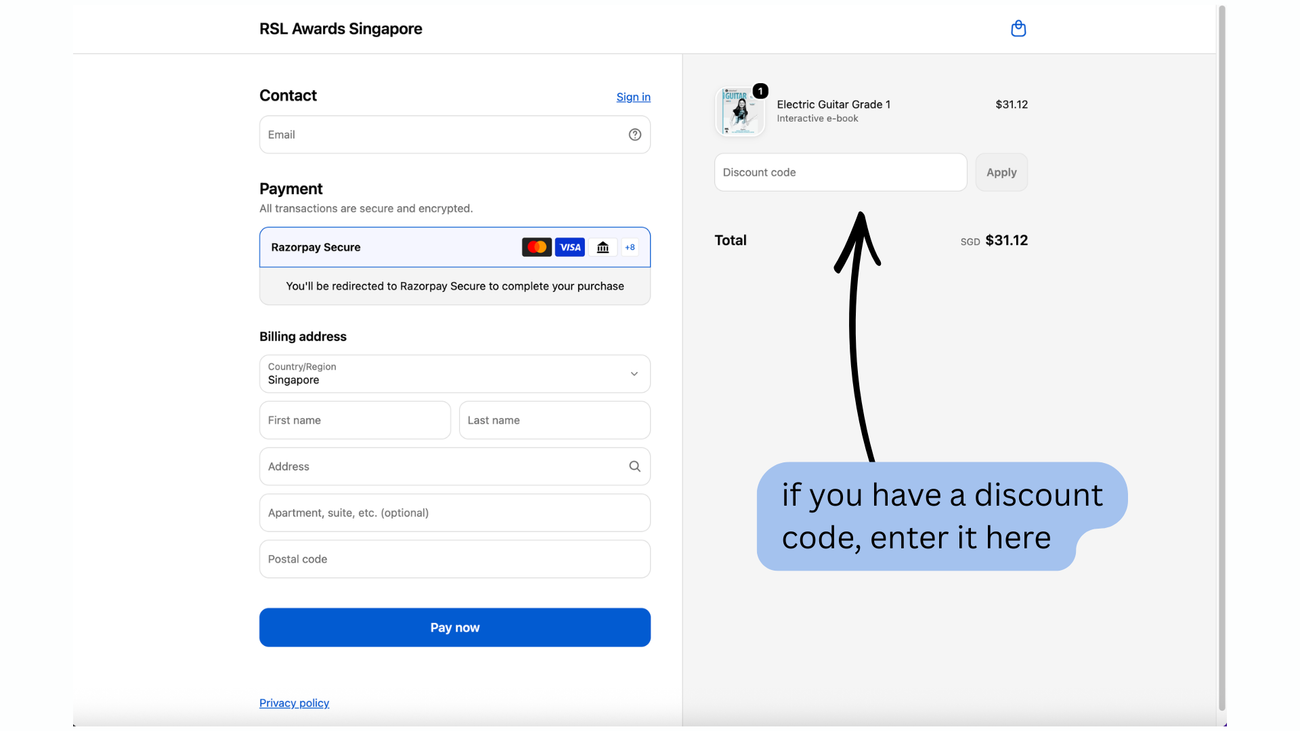
⚠️ Important: The e-book must be purchased using the same email address that will be registered to the candidate’s RiFF account. Please make sure the email at checkout matches the email used to create the RiFF account — this will be verified during the examination.
RSL London @ Funan
107 North Bridge Road #04-10 Funan Mall, Singapore 179105
(65) 6016 9395 | WhatsApp (65) 9830 9519
Step 2: Create Your RiFF Account
Once you have purchased your e-book, you will receive an email with your confirmation receipt and link to access your e-book. Once the candidate clicks on the access link, the e-Book will open in a separate browser tab. The candidate will then be prompted to log into and existing account, or create a new account on RSLAwards.com. The candidate can then access the purchased e-book, and create a RiFF account from here. RiFF is RSL Awards’ own interactive music practice platform — the engine that powers all RSL Music Exam e-books.
You can go to rslawards.com/riff and create a free account.
⚠️ Important: The RiFF account must be registered under the full name of the student who will be sitting the exam. The purchased e-book will be verified against the candidate’s name at the RiFF account during the examination. Please do not register the account under a parent’s or teacher’s name.
If you already have an RSL Awards account registered under the candidate’s name, you can use the same login details.
Step 3: Access Your E-book
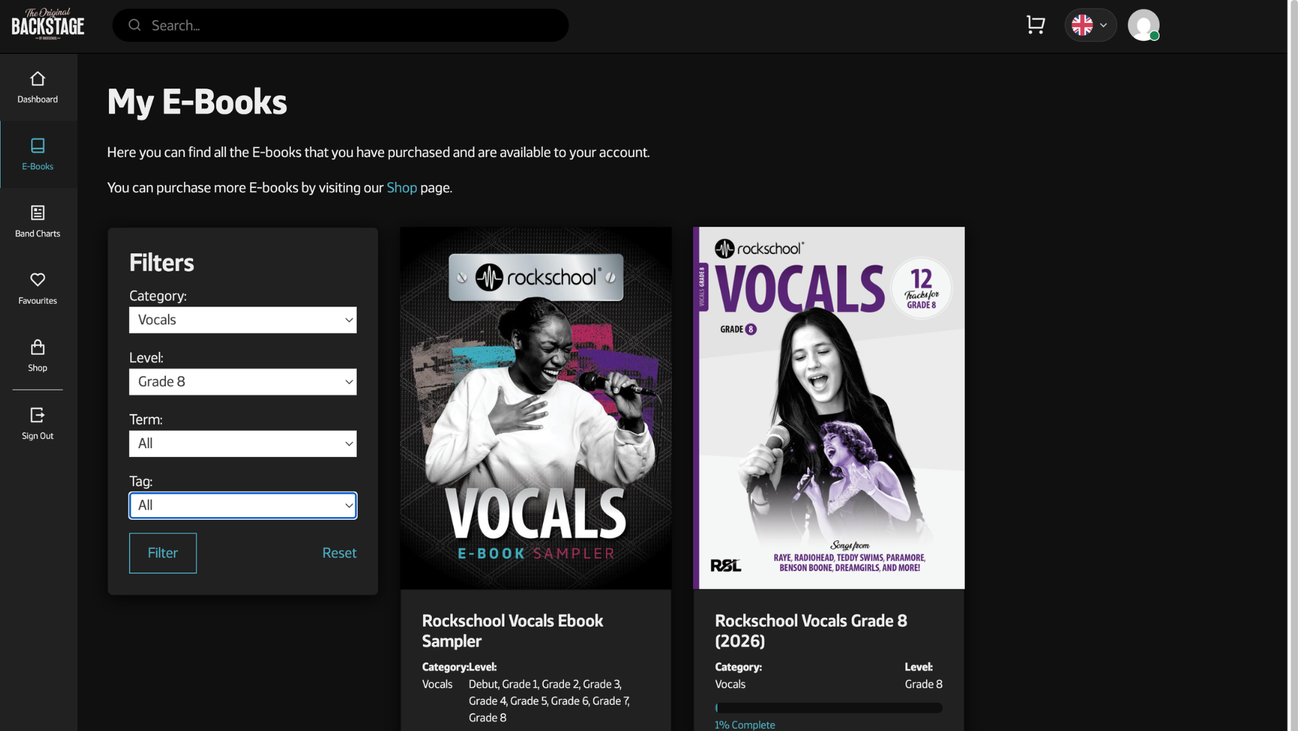
Once logged in, your purchased e-book will appear in your RiFF library. Simply tap or click on it to open it.
Your e-book will open to the contents page, where you can navigate to any piece, exercise, or section of the book. The layout is clean and simple — if you can use a smartphone or tablet, you can use RiFF.
Step 4: Explore the Features
Before your first practice session, take a few minutes to explore what your e-book can do. Here is a quick overview of the main features:
Audio playback
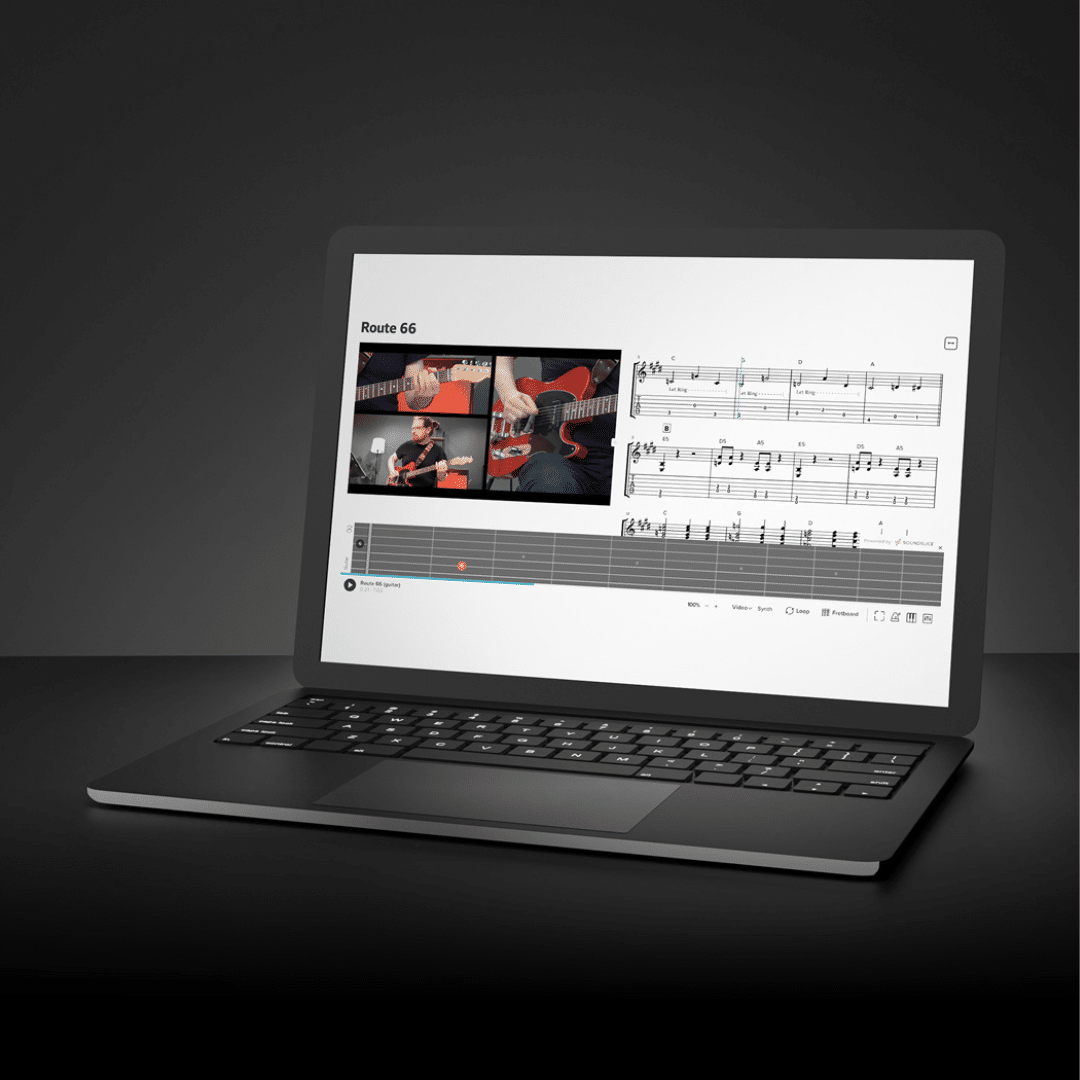
Each piece has a built-in play button. Tap it to hear the piece — the notation will follow along on screen as the music plays.
Video demonstrations
Look for the video icon on each piece. Tap it to watch a full performance with multiple camera angles, including close-up views of the hands.
Looping
Tap and drag to select any section of the music. Tap the loop button to set that section to repeat automatically. Use this to focus your practice on the parts that need the most work.
Tempo control
Use the tempo slider to slow the music down or speed it up. Start at a comfortable speed and gradually increase it as your confidence grows.
Notation options
Depending on your instrument, you may be able to switch between full score, TAB, or chord chart notation. Look for the notation toggle at the top of the page.
Step 5: Download for Offline Use
If you want to practise without an internet connection, download the PDF sheet music and MP3 audio files to your device before your session.
To do this, look for the download icon within the e-book. Once downloaded, the PDF and audio files will be available on your device even without Wi-Fi.
We recommend doing this before lessons, exam preparation sessions, or any time you know you will be practising away from a reliable internet connection.
Step 6: Set Up Exam Mode
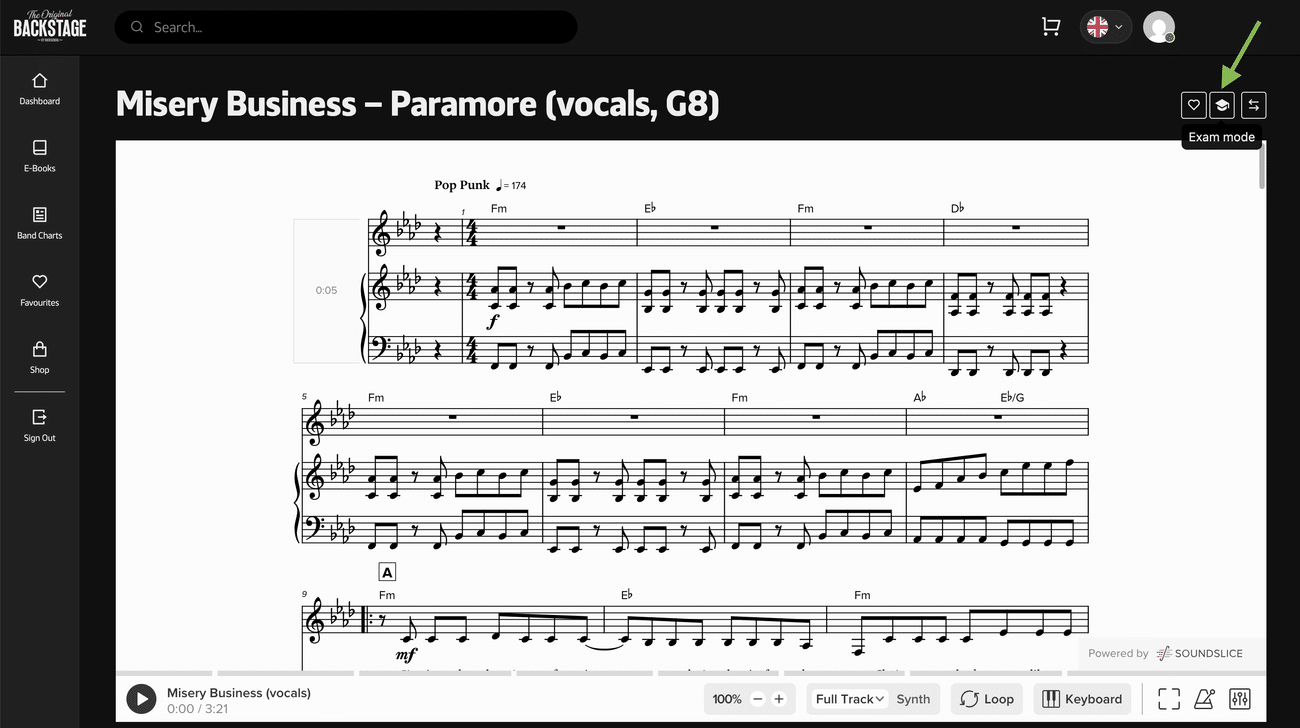
When you are ready to practise under exam conditions — or when using the e-book in your actual exam — you will need to activate Exam Mode.
To turn on Exam Mode, look for the Exam Mode toggle in the settings of your e-book. When activated, it will hide all visual learning aids — note names, chord displays, fretboard views, and other on-screen helpers — so that the music appears as it would in a standard printed exam book.
Please remember the following exam rules:
- Exam Mode must be switched on before your exam begins
- If your piece has a backing track, switch the audio from the demo mix to the backing track after activating Exam Mode
- Video playback must be hidden during the exam
- Do not change any settings or turn off Exam Mode once the exam has started — doing so will invalidate your submission
- In face-to-face exams, the e-book can be used for performance pieces only. Technical exercises are supplied by the examiner
A Few Practical Tips
Charge your device beforehand
Make sure your tablet, phone, or laptop is fully charged before any practice session or exam. It is a simple step that is easy to forget.
Download before you go
If you are travelling to a lesson or an exam venue, download your PDF and audio files at home before you leave. Internet connections at exam venues can sometimes be unreliable.
Always bring a backup
Even if you plan to use the e-book in your exam, bring a downloaded PDF or a physical copy of your book as a backup — just in case.
Keep your login details safe
Make a note of your RiFF account email and password and keep them somewhere safe. You will need them every time you log in on a new device. Remember — the email must be the same one used at checkout when purchasing the e-book.
Need Help?
If you have any questions about purchasing or using your RSL Music Exam e-book, we are happy to help. Come and speak to us at RSL London @ Funan, or get in touch by phone or WhatsApp.
You can also visit rslawards.com/riff for full guidance on the RiFF platform, including video tutorials and a help centre with answers to the most common questions.
RSL London @ Funan
107 North Bridge Road #04-10 Funan Mall, Singapore 179105
(65) 6016 9395 | WhatsApp (65) 9830 9519
Shop: shop.rs-event.sg